Overview
Marketplace allows you to browse and use pre-built apps created by Alluvial and third-party developers. Marketplace apps can be added to your project to extend its functionality and provide additional features.
There is a variety of apps available in the Marketplace, including AI based language translation tools, project management tools, data visualization apps, and more. Each app is designed to integrate seamlessly with your Alluvial project, enhancing your workflow and productivity.
IMPORTANT: There are projects that may not allow you to add Marketplace apps.
Getting started
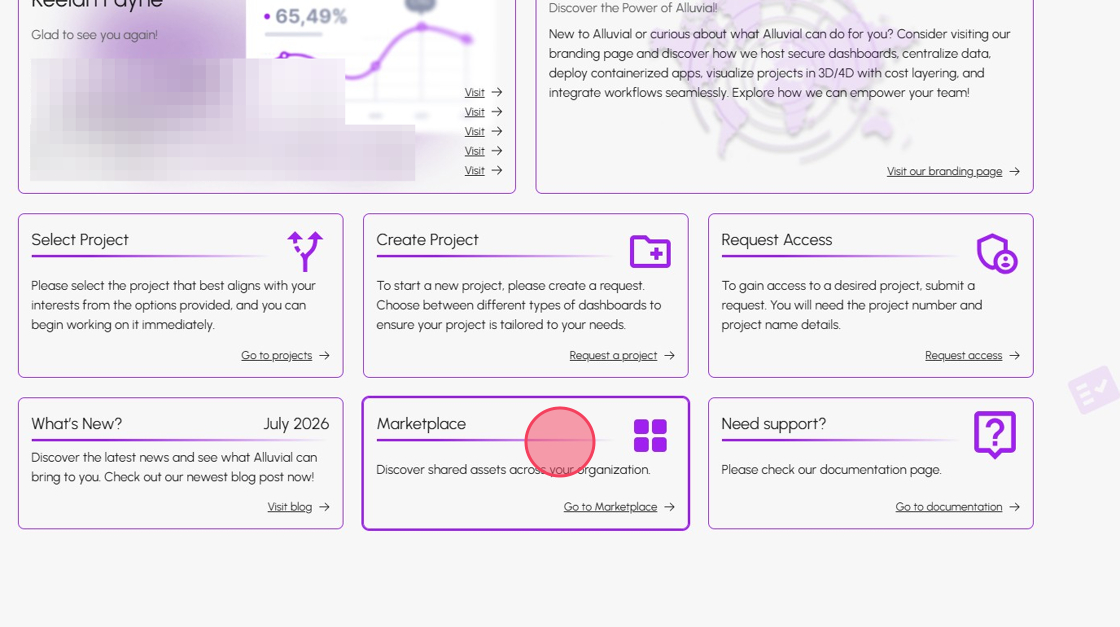
In order to use Marketplace, navigate to the Marketplace search page from the Alluvial home page.
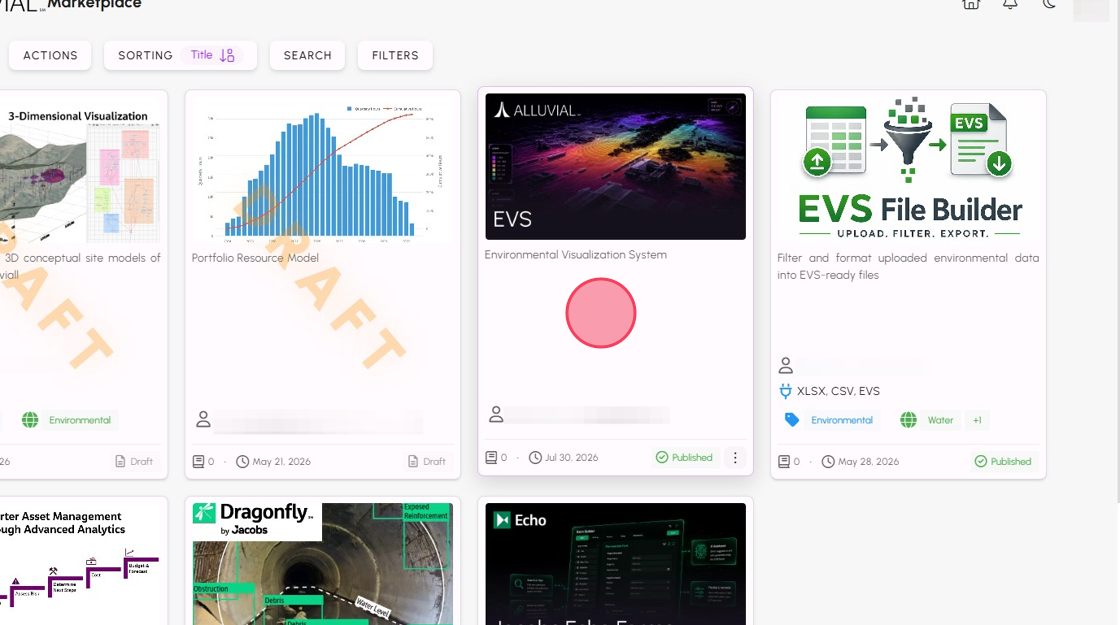
This page will allow you to search for an application using keywords or filter by Title, Owner, Tags, Applicable Markets, etc.
In order to find out more about each app, click on its card to navigate to the details page.
Adding a Marketplace App to your project
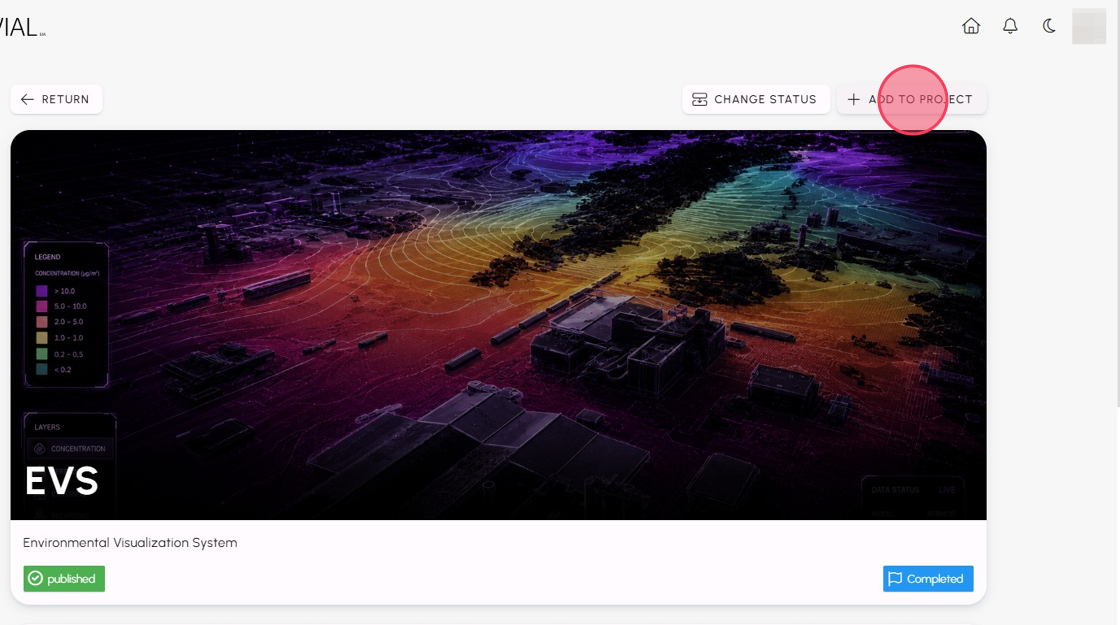
When on details page click on + ADD TO PROJECT button that is located on the right side of the page.
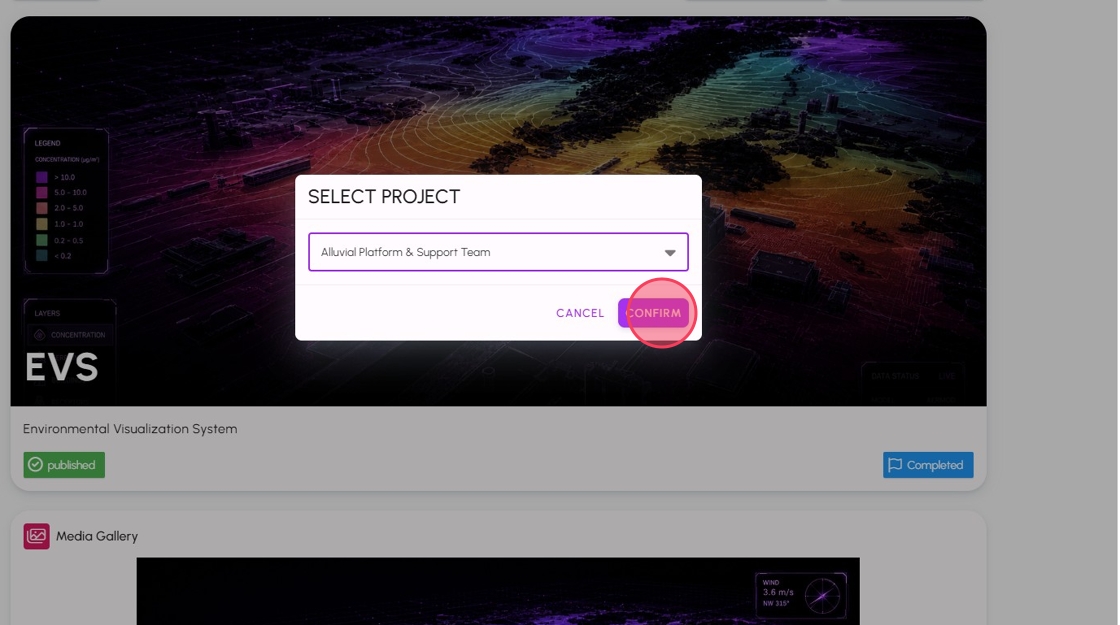
Select the project you want to add the app to from the dropdown menu. If you have multiple projects, make sure to select the correct one.
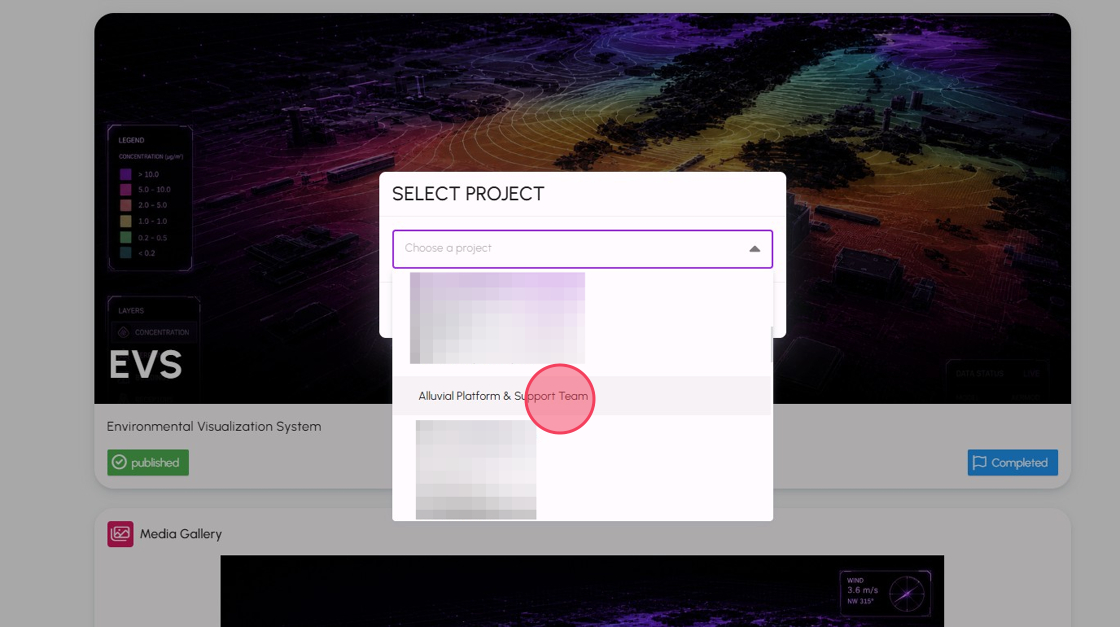
Then click confirm.
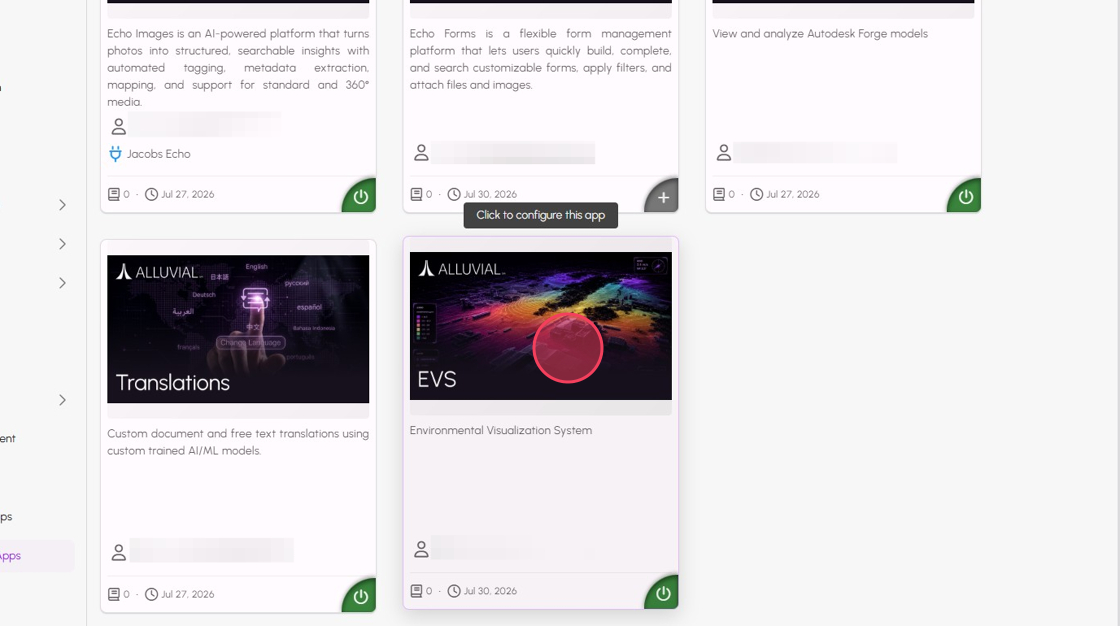
Once added, you will be redirected to your project Marketplace page where you can see all apps that have been added to your project. Select the the app you just added to configure it.
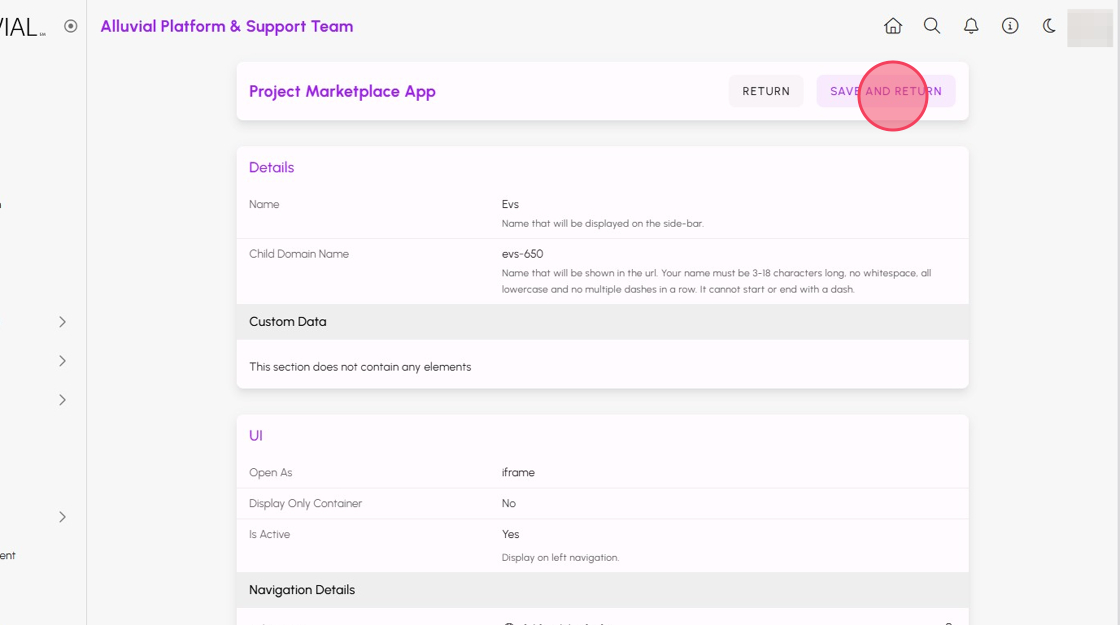
Review the configurable fields. There are two basic configuration options at the top that you will need to set up before your app is accessible:
- Name - this option allows you to specify the name that will be shown on the Dashboard page.
- Child Domain Name - this option allows you to specify the first section of the URL. Once configured it will be accessible under the following URL:
https://<child-domain-name>.alluvial.app.
After it has been configured, click on the SAVE AND RETURN button at the top right corner to return to your project Marketplace page.
Promoting a User to Admin of a Marketplace App
To promote a user to admin of a Marketplace app, navigate to the project dashboard.
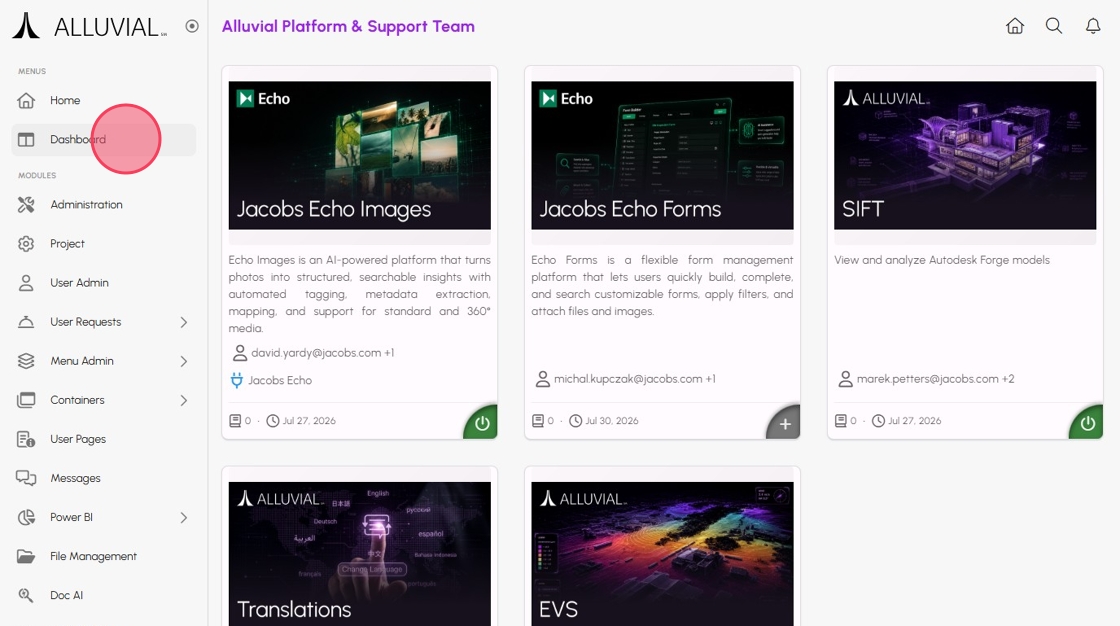
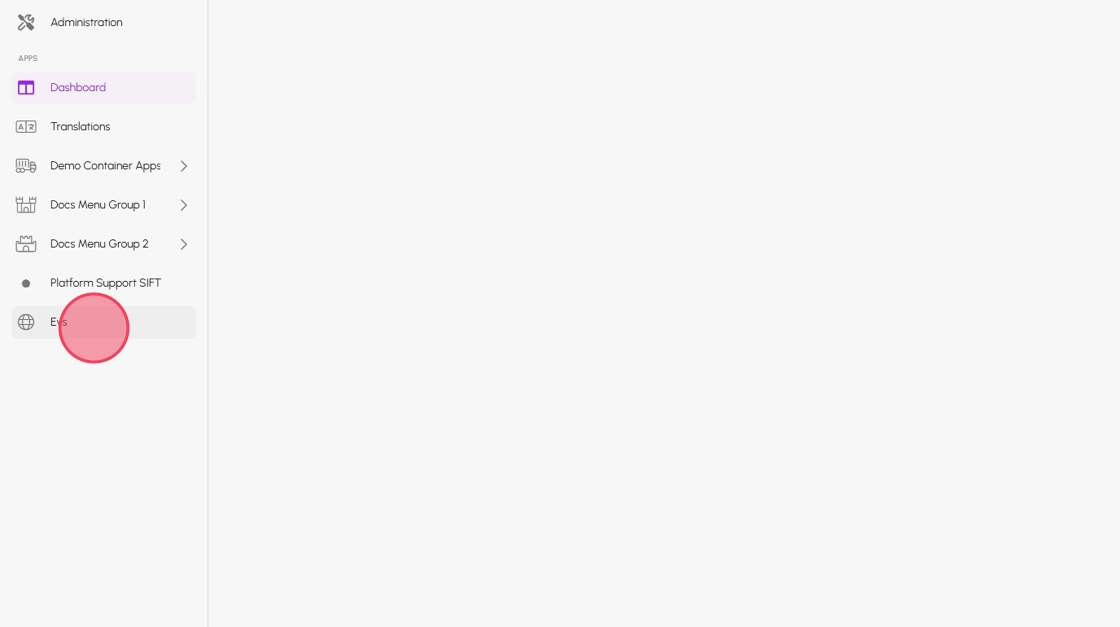
Then select the Marketplace app you want to manage from the left navigation menu. This will take you to the app's management page.
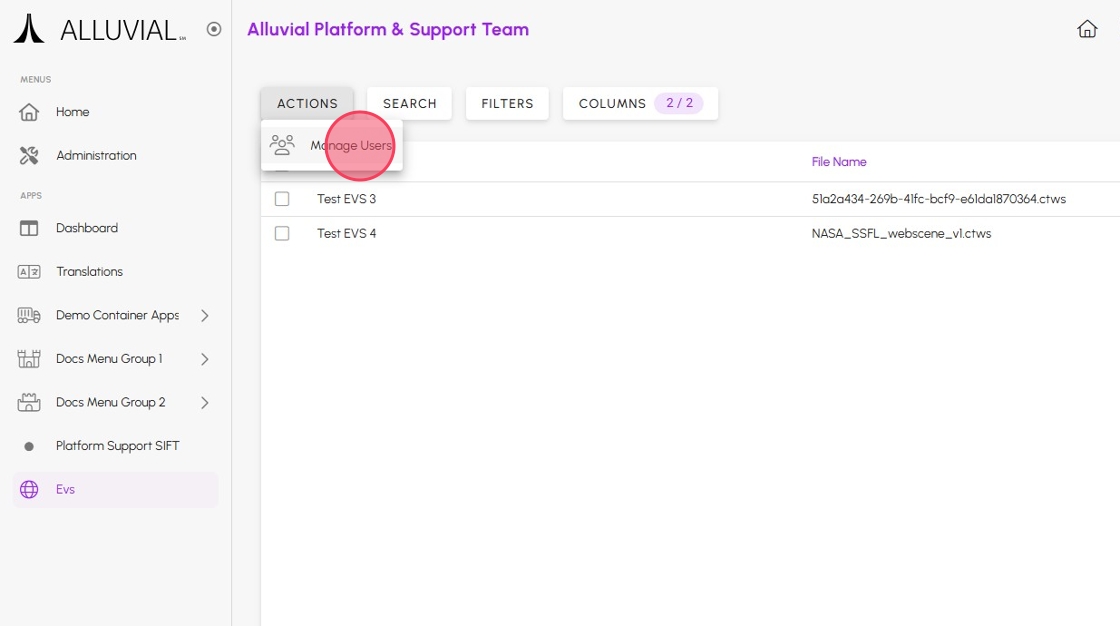
Click the ACTIONS button and select Manage Users from the dropdown menu. This will open the user management interface for the selected Marketplace app.
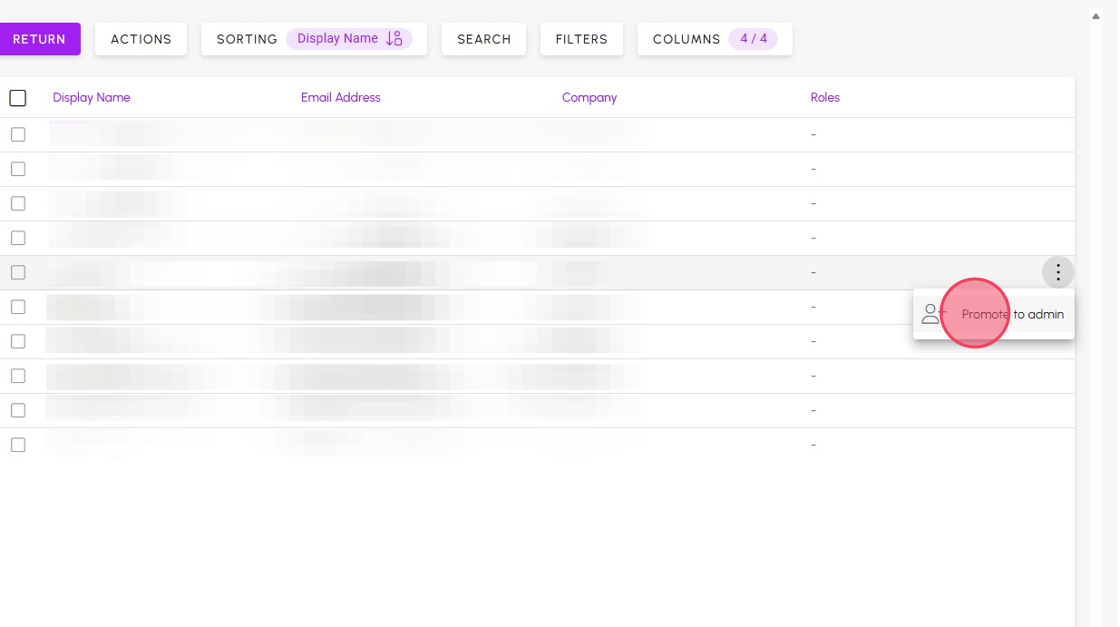
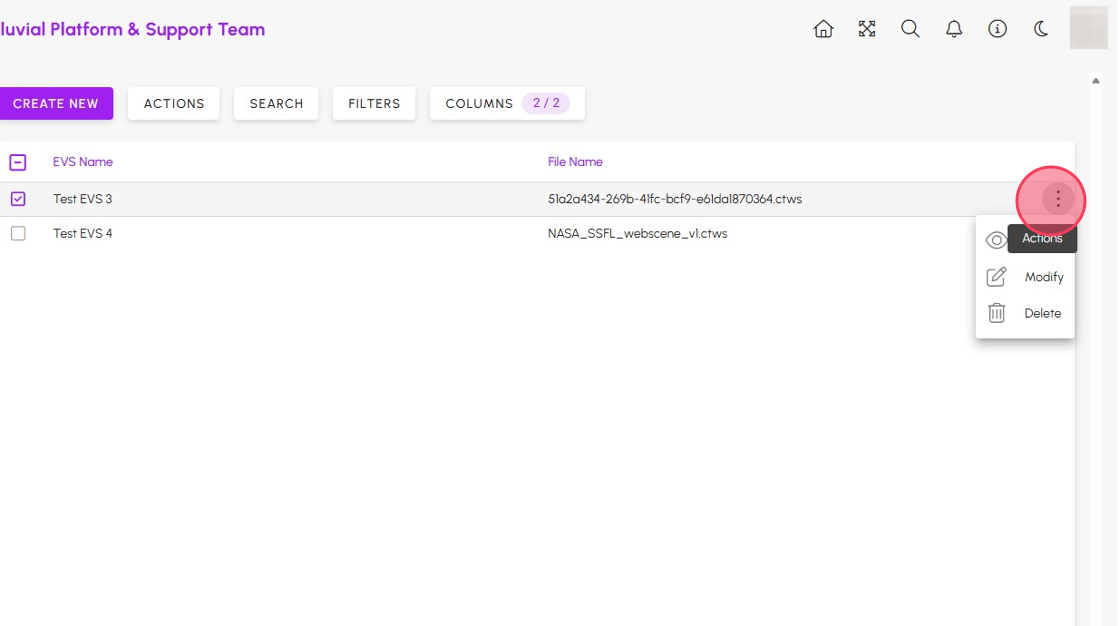
Hover over the row of the user you want to promote to admin to reveal the vertical ellipsis (⁝) button. Click on it to open the user options menu, then select Promote to admin.
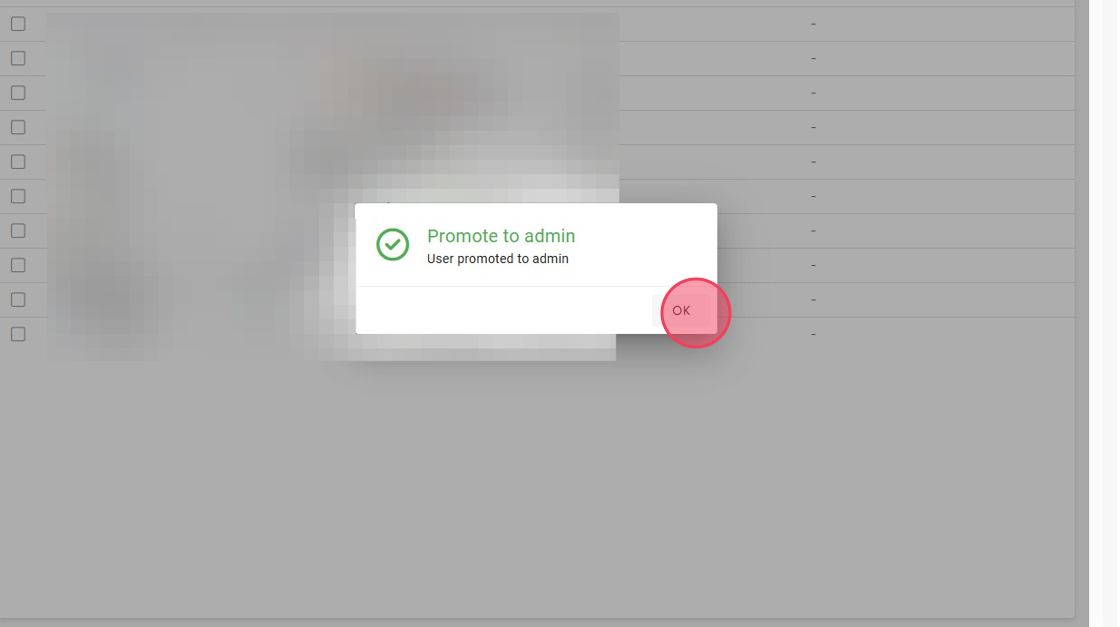
Select OK in the confirmation dialog to finalize the promotion.
Click RETURN to go back to the Marketplace app management page.
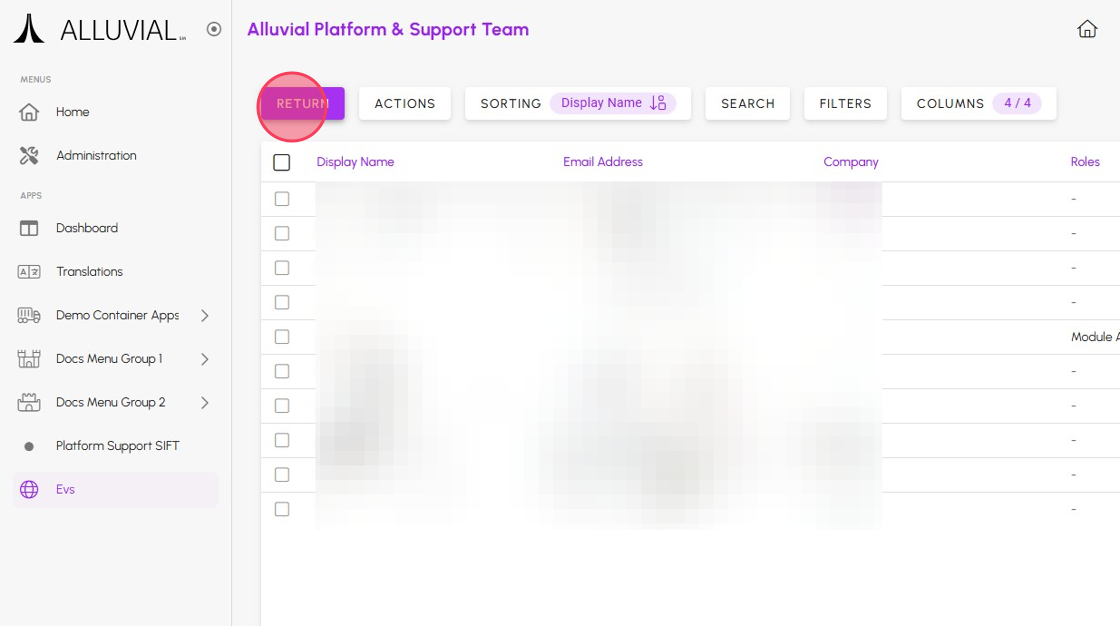
The user will now have administrative privileges for the Marketplace app, giving them additional options and control over the app.
Removing a Marketplace App From Your Project
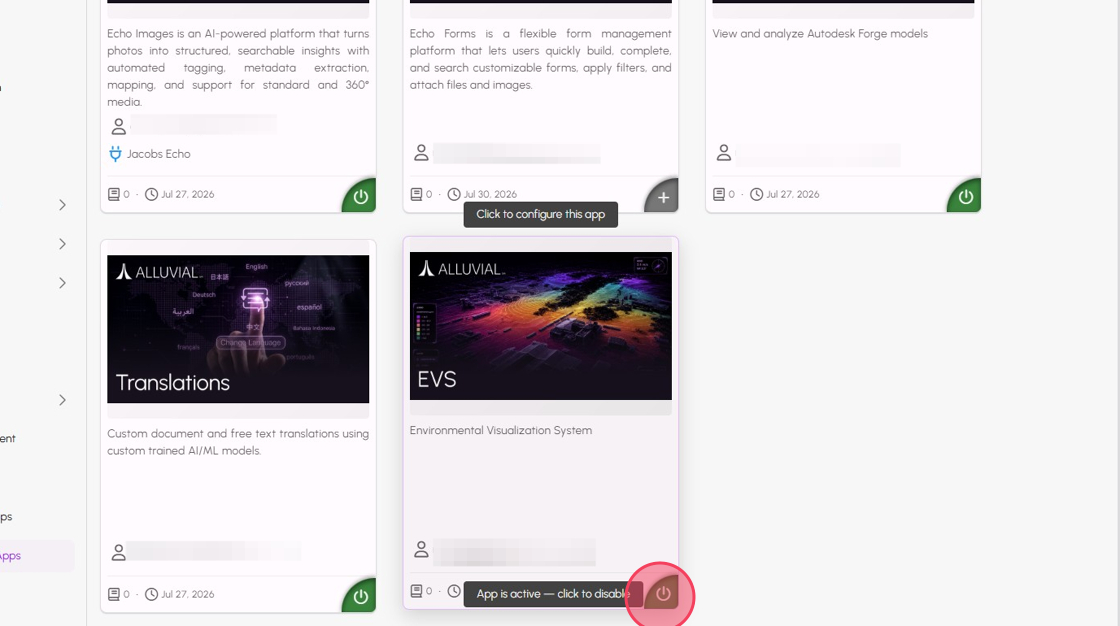
Removing a Marketplace app from your project is done through the Marketplace option found on the left navigation menu of your project administration page. This will take you to the project Marketplace page where you can see all apps that have been added to your project. By clicking on the green power button, located on the bottom right corner of the app card, you can remove the app from your project. This action will disable the app and remove it from your project, but it will not delete any data associated with the app.
Creating a New Alluvial Marketplace App
Alluvial allows developers to host their own Marketplace apps and make them available to other Alluvial users. Containerized environments and unified security take off much of the burden of app development and allow developers to focus on the core functionality.
Here are a few simple steps to get started with hosting your app within Alluvial Marketplace:
- Create a new Marketplace Item
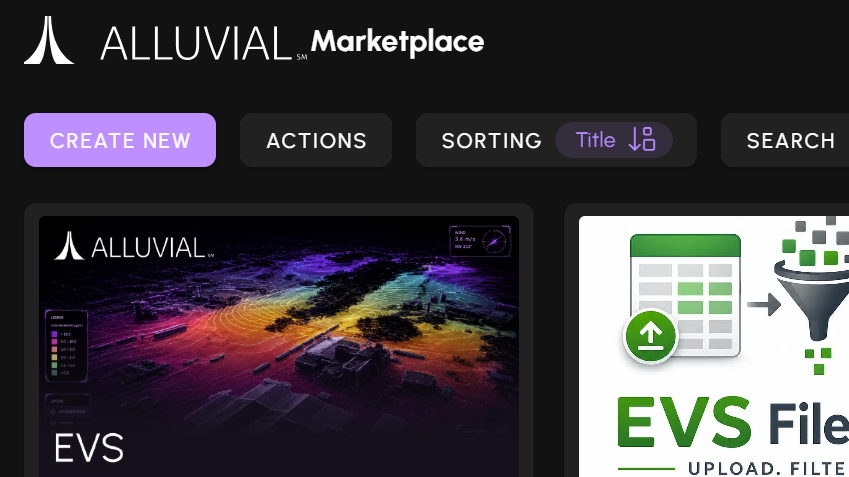
- Fill in required marked fields in the form.
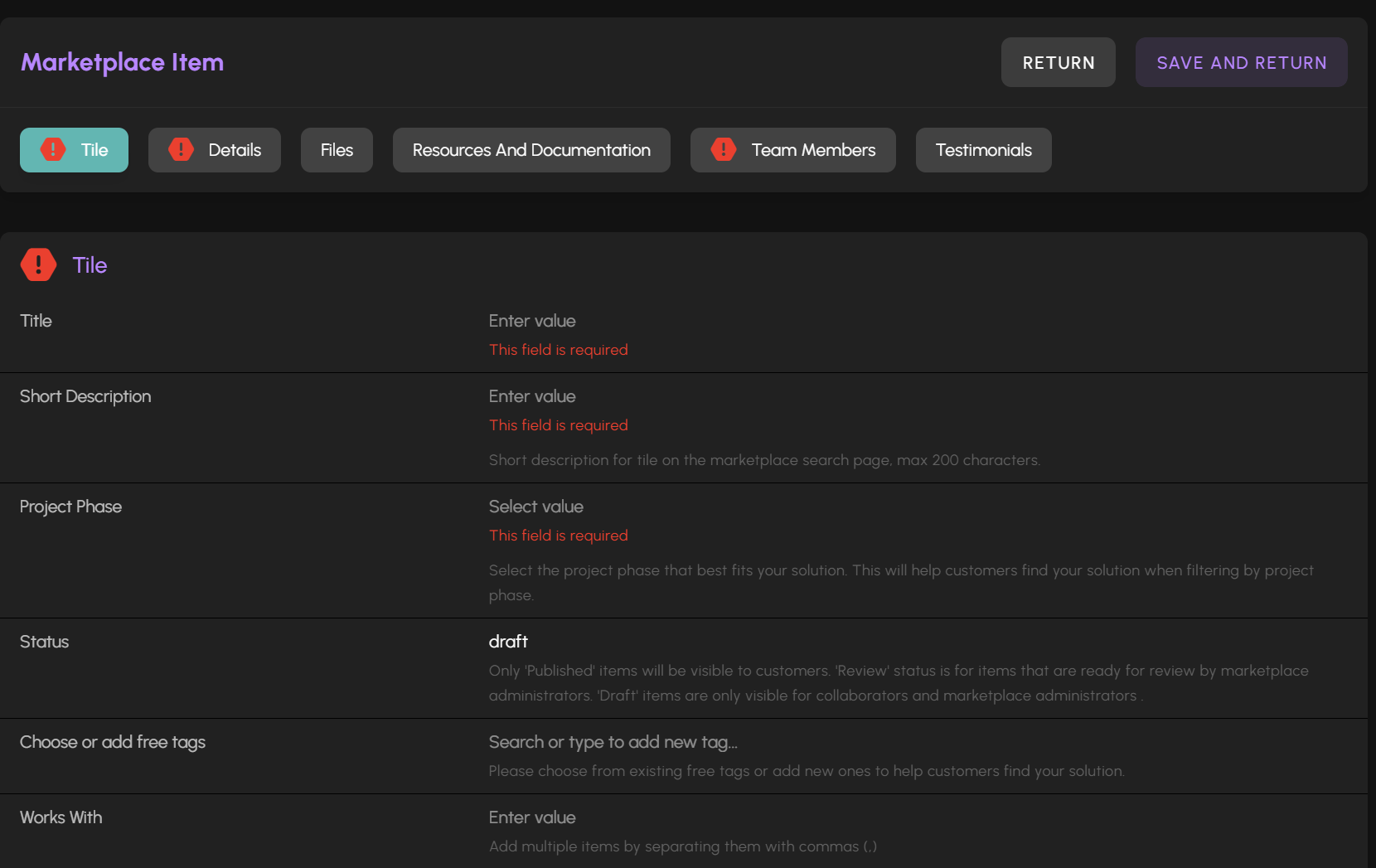
Most of the fields are self-explanatory and provide detailed description, if this is your first app note both statuses "Project Phase" and "Status" which have great impact on your app visibility by others.
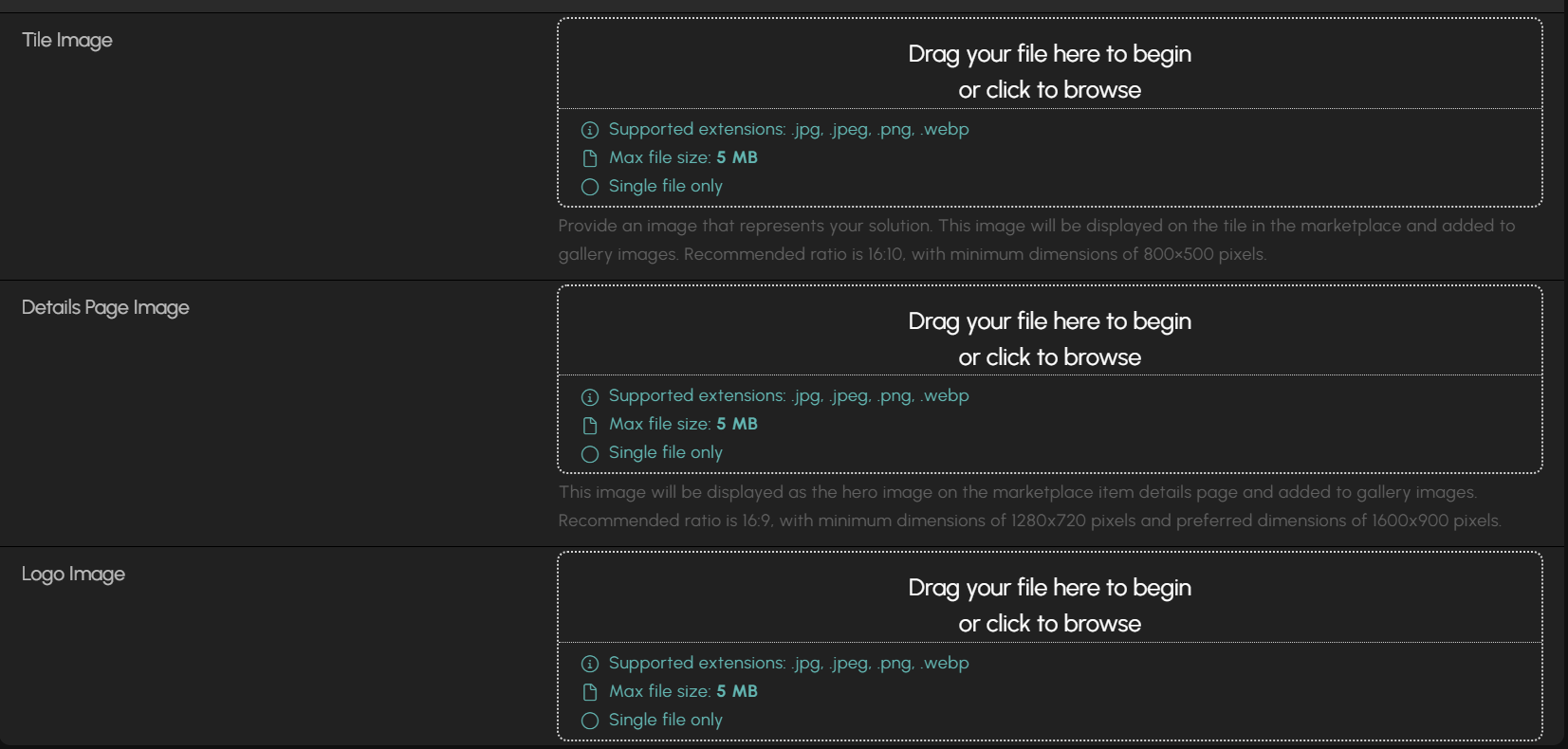
- To make your app to be recognizable, provide graphic that will be displayed on its Marketplace card.
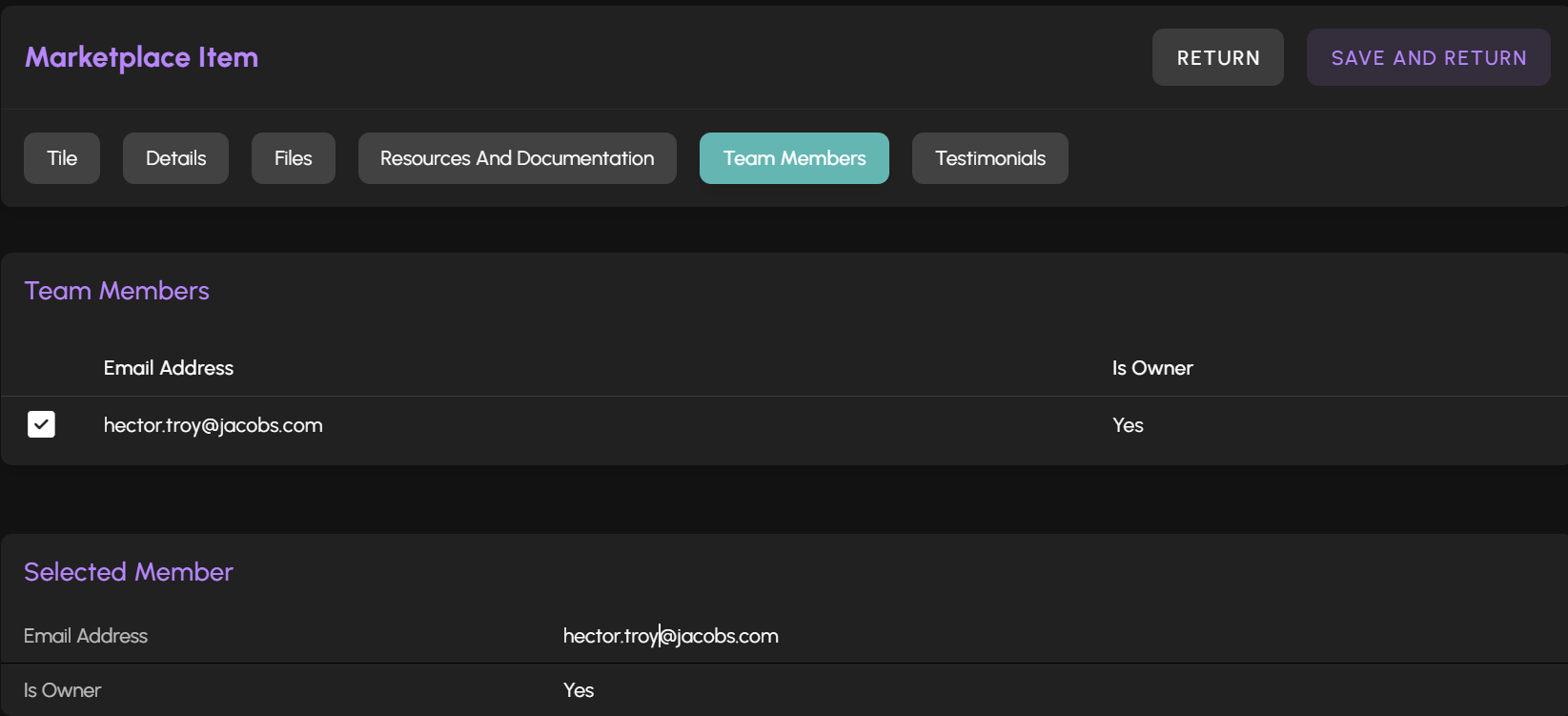
- "Team Members" tab allows you to specify email addresses of your team members that will have administrative access to your app. You can add or remove team members at any time.
- Once you click on Save and Return button at the top right corner you will be redirected to Marketplace cards view and you will see your newly created app listed there. This also starts Review process by Alluvial team.