Overview
Custom Links allow project administrators to add links to internal or external pages in an Alluvial project. Links can be organized in the project navigation and made available to users with the appropriate access.
Custom Links must be enabled for the project, and users need the Can Manage Custom Links permission to create or manage them.
Getting Started
Access Custom Links
- Navigate to the administration page in your Alluvial project.
- Select Custom Links to open the project's Custom Links search page.
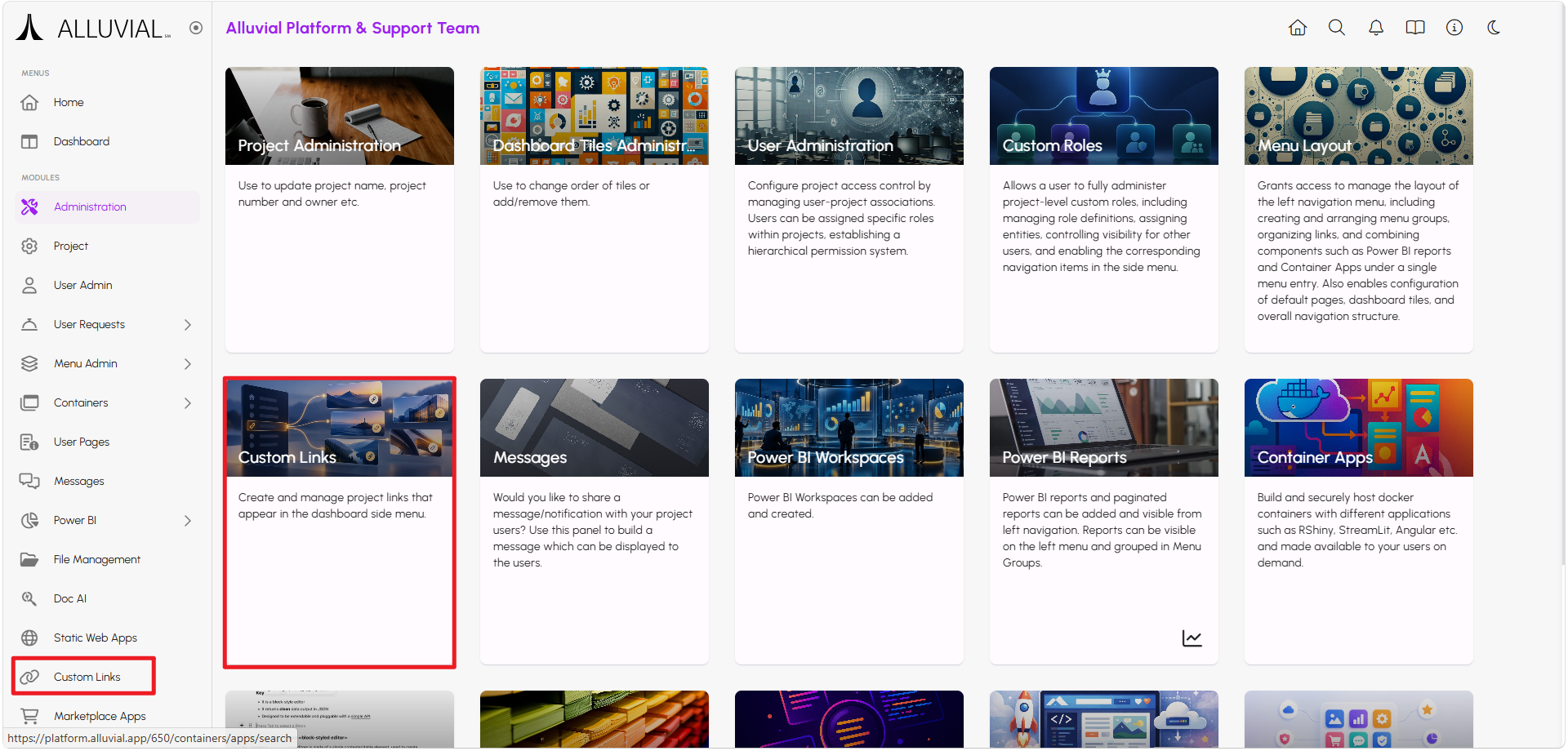
If Custom Links is not available, confirm that the module is enabled for the project and that you have the required permission.
Core Concepts
Link Destinations
A Custom Link uses a complete HTTP or HTTPS URL, including the host. When users select the link, it opens in the same tab or a new tab according to the Open Link setting. This preference may not always apply because of browser security requirements or how a destination works.
Navigation and Access
Custom Links can be placed in a Menu Group and assigned Custom Roles. A link appears in project navigation for users who have access to it.
Common Tasks
Create a Custom Link
- On the Custom Links search page, click CREATE NEW.
- Enter a Name and a complete HTTP or HTTPS URL.
- Choose whether the link opens in the same tab or a new tab in Open Link.
- Optionally enter a Description, choose an icon, select a Menu Group, and assign Custom Roles.
- To show the link as a dashboard tile, enable the Dashboard Tile option and complete the tile fields. See Dashboard Tiles for more information.
- Save the Custom Link.
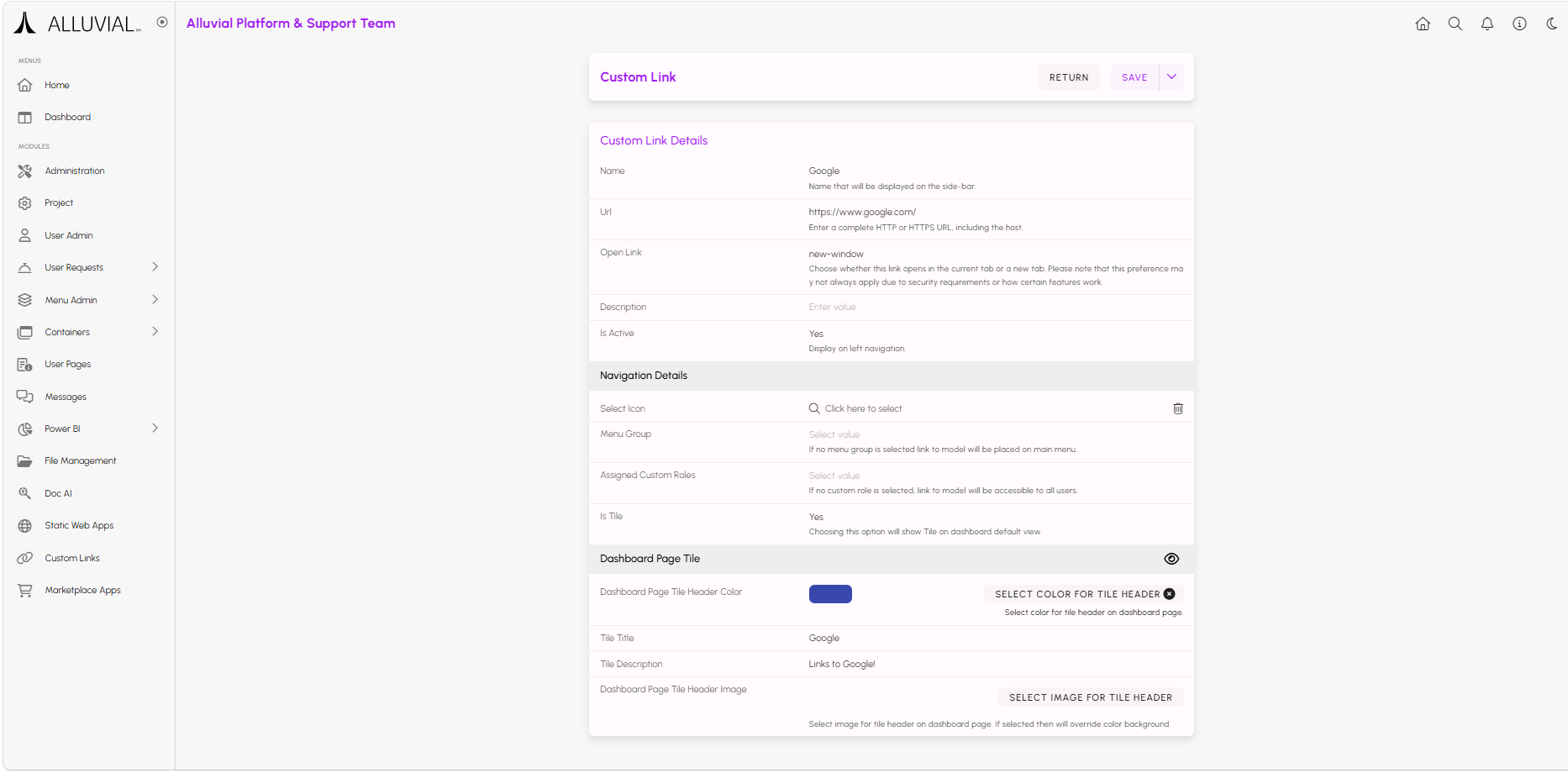
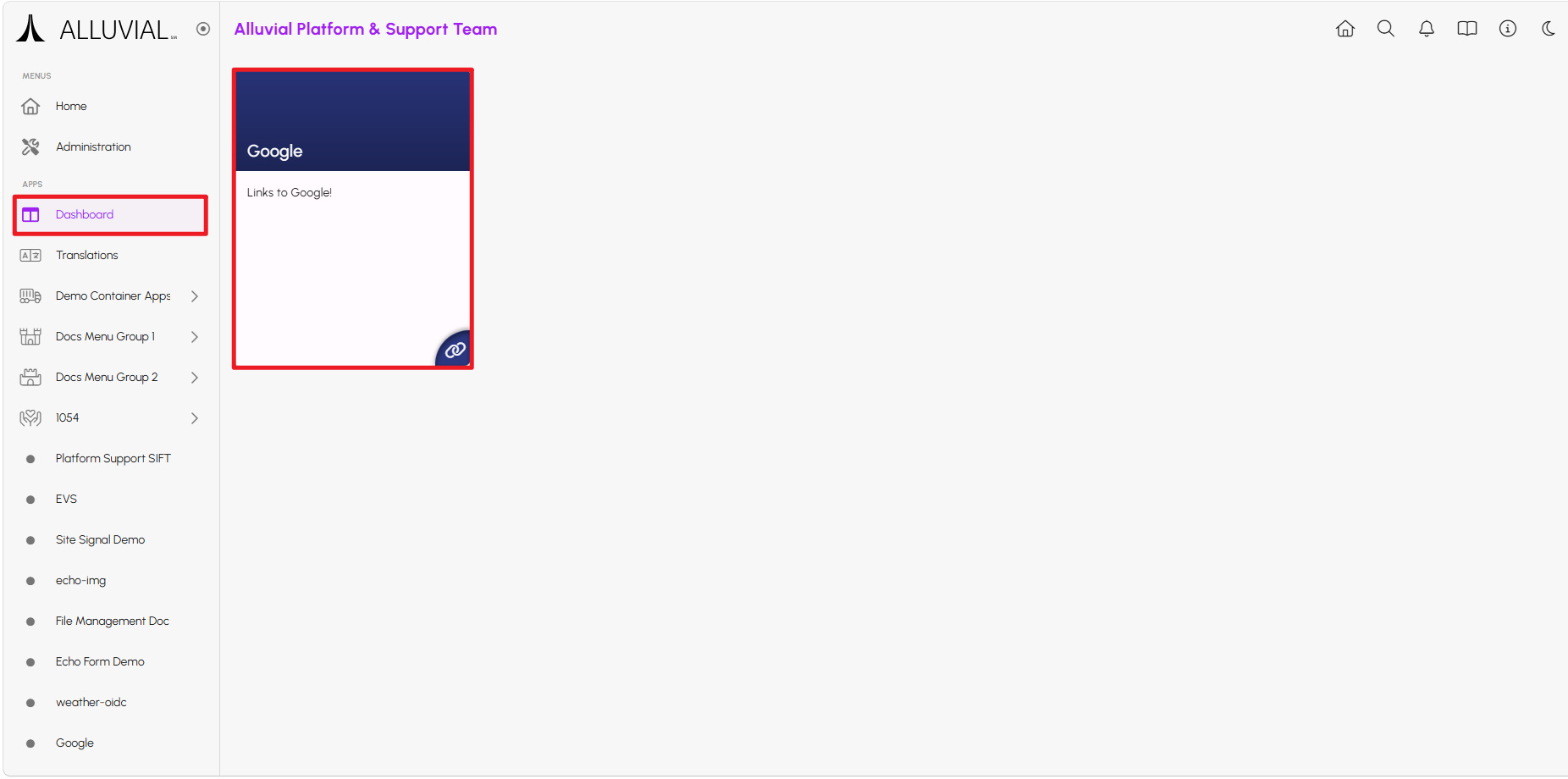
The name must be unique within the project. The URL can be up to 400 characters.
Edit or Delete a Custom Link
On the Custom Links search page, select a link to edit its settings. Use the row's delete action to remove a link you no longer need.
Organize Links in the Project Menu
Use Menu Layout to organize links, arrange their order, and place them in Menu Groups. Assign Custom Roles to control which project users can see a link. To make a role effective, assign it to the appropriate users in User Administration.