Overview
Earth Volumetric Studio (EVS) models can be easily shared and accessed within Alluvial, enabling streamlined collaboration with project teams and clients.
Getting Started
Before getting started, you may need to add the EVS app to your project. This can be done from the Marketplace section of Alluvial. See Marketplace Apps for more information on how to add and manage
Core Concepts
EVS Entries
An EVS entry represents a model configuration inside Alluvial. Once created and saved, that entry makes the EVS model available for project users to access and view.
EVS File Upload
The EVS form includes an upload step for the EVS model file. Make sure the file uses a valid EVS file extension before saving the entry.
Common Tasks
Create a New EVS Entry
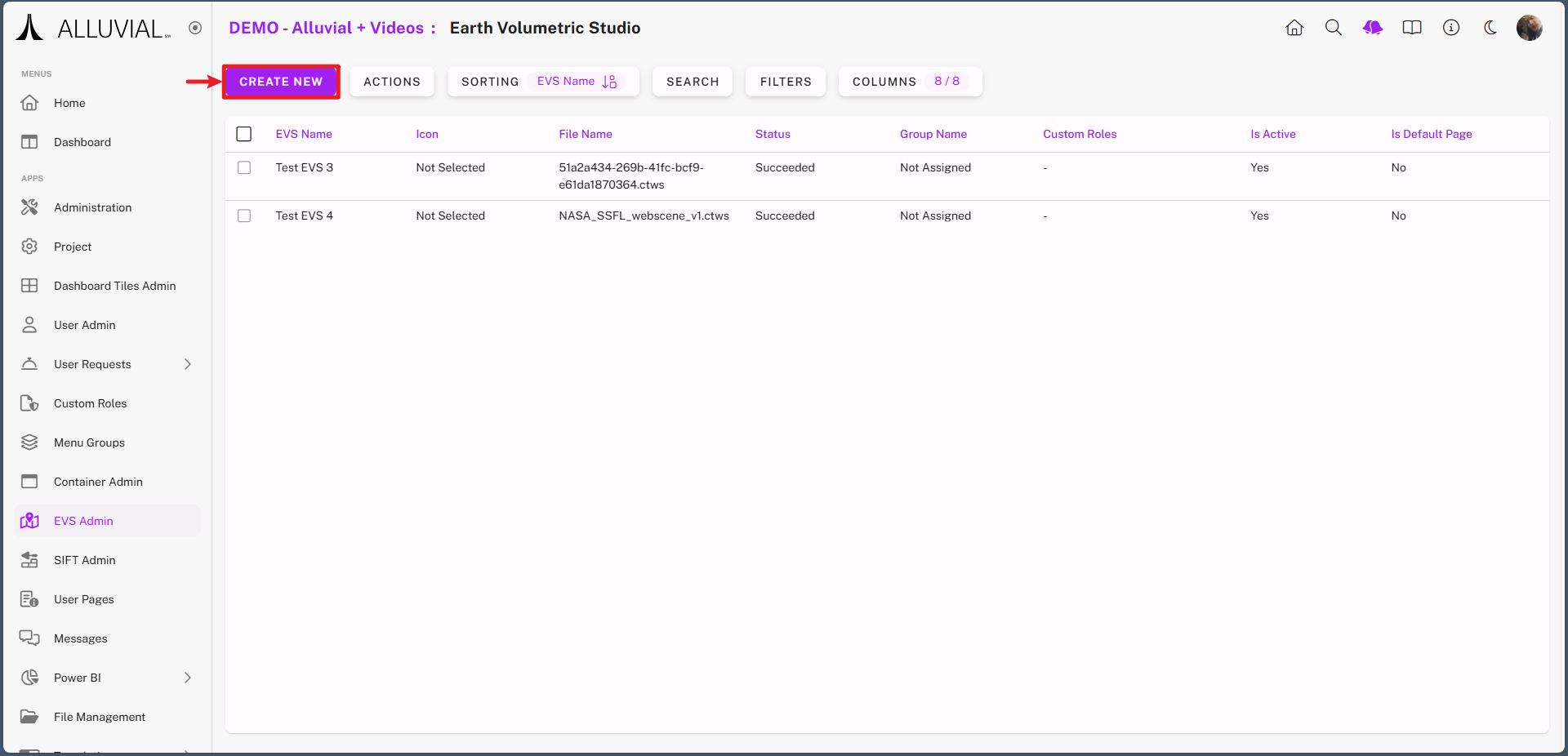
Click CREATE NEW to begin adding your EVS model.
Complete the EVS Form
- You will be presented with the EVS configuration form.
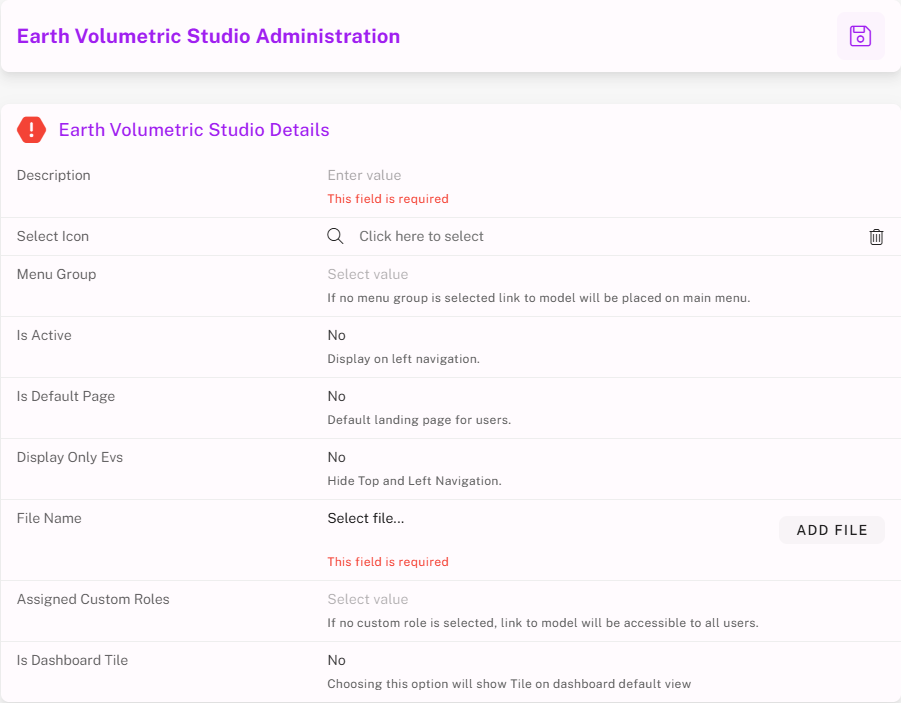
- Fill out the required fields.
- Upload your EVS file.
- Save the form to finalize your configuration.
Once saved, the EVS model will be available for users to access and view within Alluvial.